

Support between sessions

A practical library for better presentation software use resources

This resources page is a home for practical tools that sit alongside the Presentation Software Fundamentals course. Whether you are planning your first serious deck or fixing a recurring meeting presentation, you can grab templates and explanations that match the way people actually work.

Ask about resources
Preparation impact

Hours reclaimed

Using a planning grid before opening software often reduces time spent rearranging slides later, because the storyline is already clear.

Reusing a small set of layout patterns makes new decks faster to build while keeping them familiar for your audience.
Keeping a personal checklist visible while editing helps you avoid common mistakes, such as tiny fonts or cluttered titles.
Time saved
Based on learner reports of preparing later decks using the same planning tools.
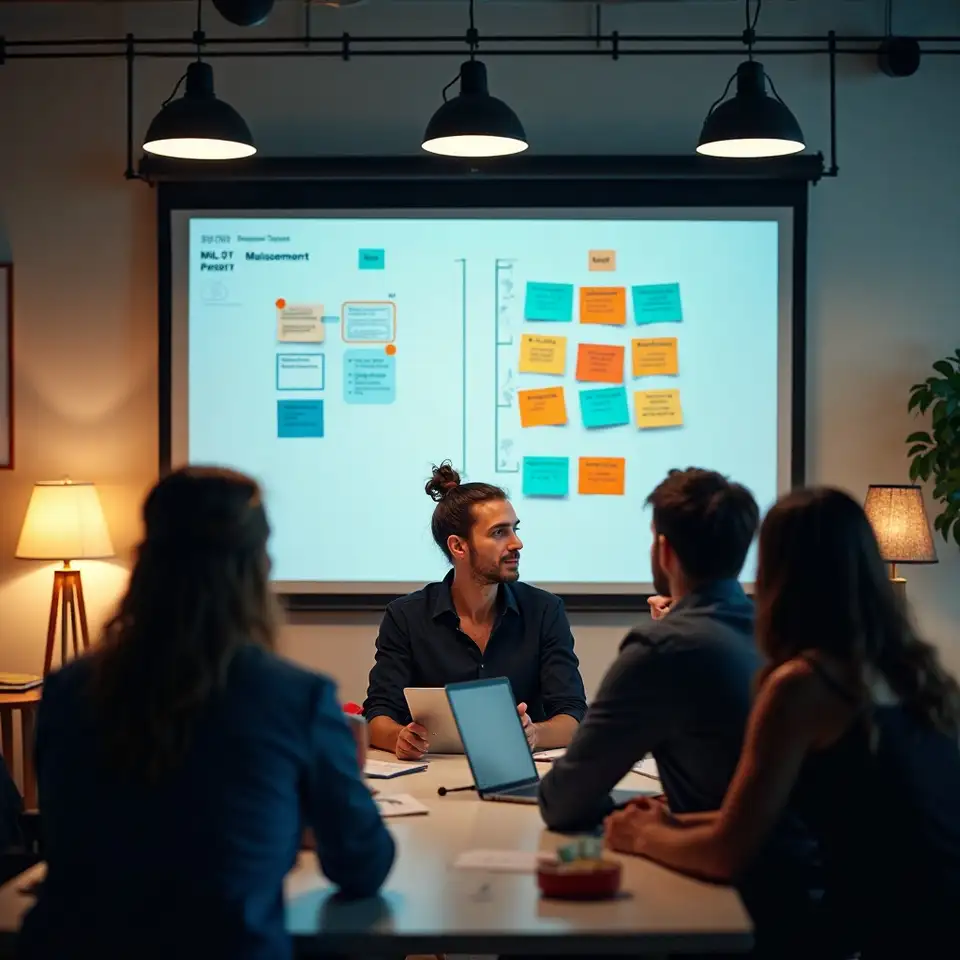
Team planning presentation ideas with sticky notes
Real teams using simple planning tools before opening slide software.

Straightforward tips for better digital presentations

Write the audience goal first

Start every deck by writing a one sentence goal for your audience, then keep it visible while you build slides. If a point does not support that goal, move it to notes or a follow up document instead of forcing it onto an already crowded slide.

Choose simple, readable text

Use large, consistent font sizes for body text and avoid mixing more than two typefaces. This keeps slides readable from the back of a room and stops the design from feeling busy even when you must show several points at once.

Let visuals earn their place

When adding images, ask whether they clarify a point or simply decorate the slide. If an image does not earn its space by supporting what you say, remove it and let white space make the message easier to absorb.

Know your navigation shortcuts

Practise navigating your slides without looking down at the keyboard. Learn one or two simple shortcuts for moving forward, backward, and to a specific slide number so you can respond calmly if someone asks to revisit an earlier point.

Test on the real display

Before presenting, run your deck on the actual screen or projector if possible. Check that text is readable, colours have enough contrast, and any embedded media plays smoothly so there are fewer surprises in front of your audience.

Finish with a clear next step

End with a slide that clearly states what should happen next, such as a decision, action, or follow up. This helps your audience remember the point of the presentation and makes it easier to close confidently.

Resource hub

The resources on this page are built for people who want practical support between formal learning sessions. You will find planning worksheets, slide checklists, and example decks that mirror real meetings and classes rather than polished showcase talks. Each item is designed to be printed or used on screen, so you can keep it nearby while working in your chosen presentation software.

What you will find

At the top of the library you will see a small set of core templates: the Story Spine Grid for planning, a three pass edit checklist for design, and a rehearsal reflection sheet. Additional items include comparison examples, slide layout suggestions, and prompts for gathering feedback from colleagues or students after a presentation.

Plain language terms

Glossary for presentation software terms

If you have ever been told to adjust a master slide or check the aspect ratio and had no idea what that meant, this section is for you. Use it as a quick reference while building your next deck.

News and updates from Otaplalvetolaxwioned

Stay up to date with changes to the fundamentals course, new examples, and opportunities to see the methods applied live in webinars or workshops.

Your cookie preferences control

This site uses cookies to keep the platform secure, understand how visitors use the content, and remember your preferences. You can accept all cookies, reject non essential ones, or adjust settings at any time in the cookie controls.

Essential cookies

Essential cookies keep the site secure, remember your preferences, and make basic features like navigation work smoothly.

Analytics insights

Analytics cookies help us understand which pages visitors read most, so we can improve explanations and resources over time.

Preference settings

Preference cookies store your choices about language, cookie settings, and accessibility options for later visits.